How to Install Fonts on Your Kobo
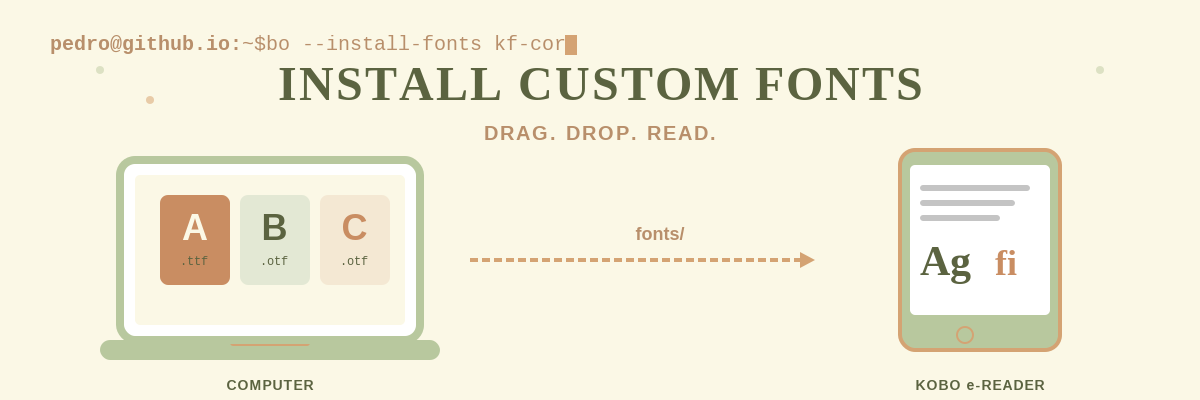
A simple, no-nonsense guide for Kobo e-readers. No KOReader, no third-party apps — just you, your computer, and a USB cable. 🛠️
If you use your Kobo a lot and get tired of the default fonts from publishers or Kobo itself — or you just really like type and consider yourself a bit of a typography nerd — then you might want to install some extra fonts. And of course, there’s always the “because I’m a geek and I tinkerer” reason. That one’s plenty valid on its own.
I chose this pack mainly because of Nico’s work and his open source wizzadry. He also created Libron, which I liked the look of — and the pack threw in some extra fonts too.
So I got to work.
📥 Step 1: Grab the Right Files
Head over to the release page:
Since i'm using a standard Kobo e-Reader (not a Kindle or KOReader), download:
- ✅ KF Core fonts - basic core collection of fonts
- ✅ KF Extra fonts - an enlarged font collection
💡 These are specially patched for Kobo’s built-in reading software: better letter spacing (kerning) in Kobo’s native “kepub” renderer, and hinting that stops the vertical “wobble” Kobo’s screen renderer otherwise introduces. Bonus: they’re completely free and OFL-licensed, so you can even embed them in your own ebooks (just include the license file).
💻 Step 2: Unzip and Connect
- Once the download finishes, unzip the files on your computer.
- You should see files ending in
.ttfor.otf. - Grab your Kobo and the USB cable. Plug it into your computer.
- Your Kobo screen will ask if you want to connect — tap “Connect” so your computer can see it.
📂 Step 3: Find (or Make) the Magic Folder
- On your computer, open the drive named “KOBOeReader”.
- Look for a folder named
fonts. - If you don’t see one, don’t panic — just create a new folder and name it exactly
fonts(all lowercase, no spaces).
📁 Step 4: Drop the Files
- Take those unzipped font files and drag them directly into that
fontsfolder. - ⚠️ Important: Do not put them in sub-folders inside the
fontsfolder — they need to sit right in the main directory. - Once they’re copied over, safely eject your Kobo from the computer.
🔄 Step 5: The Crucial Reboot
This is the step people often skip. You must restart your Kobo.
- Long-press the power button until your Kobo tells you it has shut down, then press the power button again and let it start up.
- The developer’s guidance notes that a reboot is REQUIRED if you’ve ever installed previous versions of these fonts — otherwise the old ones will keep being used. It’s good practice in every case.
- If you have NickelMenu installed, please add a reboot option to it. Does the trick.
- The classic “turn it off and on again” magic. ✨
🎉 Step 6: Pick Your New Font
- Open a book on your Kobo.
- Tap the middle of the screen to bring up the menu.
- Tap the Text icon (usually an “Aa”).
- Look for the “Font Face” or “Advanced” dropdown.
- You should now see your new fonts listed there (they start with “NV” or “KF”). Select one and enjoy the view!
🧪 Level 2: Enable Ligatures (Optional, But Recommended)
Want prettier letter pairs like fi and ff? The developer highly recommends enabling ligatures on Kobo:
- While your Kobo is connected via USB, open the hidden
.kobofolder on the device (enable “show hidden files” on your computer if you can’t see it). - Open
Kobo eReader.conf(found in.kobo/Kobo/). - Find the
[Reading]section and add this line below it:webkitTextRendering=optimizeLegibility - Fully restart your Kobo. Fonts like NV Garamond and Libron suddenly look a whole lot fancier.
Skip this if editing config files sounds scary — your fonts will work perfectly fine without it.
💡 Why do this? That one line switches Kobo onto its advanced text path (proper ligatures and kerning). It’s a one-line edit, trivially reversible, and survives firmware updates. It’s also the foundation for the optional mod below.
🔬 Level 3: NickelTypeFix (For Perfectionists)
Feeling ambitious? The same developer makes NickelTypeFix, a mod that patches Kobo’s stock reader engine itself. It fixes justification gaps, vertical text wobble, gridsetting, letter and capital spacing — and even speeds up opening long chapters. These are real annoyances that the config tweak above alone doesn’t solve (it can even expose a few of them, which is exactly why the mod exists).
Before installing, check three things:
- ⚙️ Firmware: requires 4.21.15015 or later in the 4.x series — firmware 5.x is not supported yet. Check yours under Settings → About.
- 📦 Installation: download the release, copy
KoboRoot.tgzinto the.kobofolder, eject, and e-Reader should reboot and install itself. - 🧹 Uninstallation: delete the
uninstallfile in.adds/nickel-type-fix/and reboot. Equally painless.
⚠️ Honest caveat: this mod patches the reader’s code in memory while it boots. The developer built in safety checks and a boot failsafe, but it’s a deeper intervention and results vary depending on font, book styling, and reader settings.
My recommendation: do Levels 1 and 2 now regardless. Read for a few days — if you notice justification gaps, odd spacing, or slow chapter opens and you’re on a supported 4.x firmware, add NickelTypeFix. If your text already looks clean, skipping the mod is a perfectly good outcome.
💡 Quick Witty Tip
If a font looks a little weird or the thickness slider acts up, double-check you put the files in the right place and didn’t accidentally bury them in a folder within a folder.
Kobo’s software is simple, not stupid — it just likes things tidy. 😉
Happy reading! 📖