Obsidian Rclone Sync
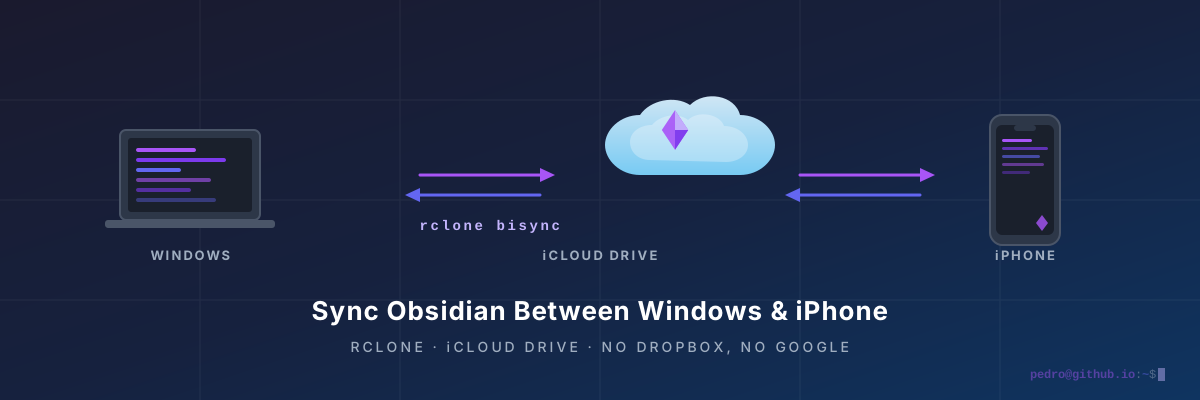
Syncing Obsidian Between Windows and iPhone with rclone + iCloud Drive
A workaround for people who want cross-device Obsidian sync without paying for Obsidian Sync — and without touching Dropbox or Google.
The Honest Preamble ⚠️
Let me be upfront before you spend an hour on this: this setup is a hack, and it has sharp edges.
Obsidian officially warns that using iCloud Drive on Windows can lead to file duplication or corruption. The rclone iCloud backend is still labeled BETA. And there’s a known permission bug where files uploaded from Windows via rclone can become read-only on iOS.
But if you’re stubborn like me, already pay for iCloud, and refuse to hand your notes to another corporation, this works. I’ve been running it. It’s not pretty, but it’s functional. 🔧
Here’s the full recipe, from zero.
What You’ll Need 🧰
- A Windows PC (Windows 10 or 11) 💻
- An iPhone with Obsidian installed 📱
- An iCloud account with enough storage ☁️
- About 30 minutes and a tolerance for command-line nonsense
Step 1: Install rclone on Windows
Open PowerShell (normal, not administrator) and run:
winget install Rclone.Rclone
If that fails, grab the .zip from rclone.org/downloads, extract rclone.exe somewhere in your PATH, and move on.
Verify it works:
rclone version
You should see a version number. Make sure you’re on v1.74.0 or later — earlier versions have a broken iCloud authentication flow that will make you tear your hair out. If you’re on an older version:
winget upgrade Rclone.Rclone
If winget doesn’t have the newest version, download the beta directly from rclone.org.
Step 2: Configure rclone for iCloud ☁️
This is the fiddly part. Apple doesn’t document their iCloud API, so rclone reverse-engineered it. Authentication uses your regular Apple ID password plus 2FA — app-specific passwords are explicitly not accepted.
Run:
rclone config
Follow the prompts:
nfor New remote- Name it
icloud - Choose
iclouddrivefrom the storage list - Leave
serviceat default (drive) - Enter your Apple ID email — all lowercase. Uppercase letters can break the SRP authentication flow.
- Choose
yto type your own password, then enter your regular Apple ID password - Say
nto advanced config - When prompted for 2FA, check your iPhone — Apple should send a push. Enter the code.
If successful, you’ll see a config summary. Confirm with y. ✅
The 2FA Nightmare (and the Offline Code Hack) 🕵️♂️
Sometimes Apple’s push never arrives, and rclone throws this at you:
Error: validate2FACode failed: HTTP error 400
"code" : "-21669", "title" : "Incorrect Verification Code"
This isn’t your fault. rclone’s authentication flow has a bug where it forgets to tell Apple to actually send the code. So any code you type in gets rejected because it was never tied to rclone’s login session.
The fix: the offline code hack.
- Put your iPhone in Airplane Mode. No WiFi, no cellular. Just do it. ✈️
- Go to Settings → Apple ID → Password & Security → Get Verification Code
- Copy the code that appears
- Turn Airplane Mode back off
- Enter that code into rclone
The offline code is generated locally on your device, so it doesn’t depend on rclone triggering Apple’s push system. This has worked for multiple users hitting the exact same error.
If it still fails: delete the broken remote and start over:
rclone config delete icloud
rclone config
Then redo the steps, using the offline code trick from the start.
The 30-Day Re-Auth (Annoying But Unavoidable) 🗓️
This creates a trust token that expires in 30 days. When it does, syncs will start failing silently. Run:
rclone reconnect icloud:
and redo the 2FA dance. Set a calendar reminder. This is a fact of life with rclone’s iCloud backend.
Verify everything works:
rclone lsd icloud:
You should see your iCloud Drive folders (Downloads, Shortcuts, Obsidian, etc.).
Step 3: Set Up Obsidian on iPhone (Properly) 📱
This is where most people screw up.
Obsidian on iOS is sandboxed. It can only see vaults in two places: On My iPhone (local only) or iCloud Drive/Obsidian/ (the special app container).
The Obsidian folder must be created by the Obsidian app itself. If you manually create a folder called “Obsidian” in iCloud Drive, Obsidian will ignore it.
If you already have a local vault on iPhone:
You need to create a new vault in iCloud and move your notes into it.
- Open Obsidian on iPhone
- Tap the vault switcher (top-left)
- Tap “Create new vault”
- Name it whatever you want (e.g.,
myvault) - Toggle “Store in iCloud” ON — this is the critical step 🗝️
- Tap Create
This forces Obsidian to create its proper app container folder in iCloud Drive. Your new vault is now at:
iCloud Drive/Obsidian/myvault
Move your notes into the new vault:
- Open the Files app on iPhone
- Go to On My iPhone → Obsidian → [old vault]
- Select all your notes and folders (not the
.obsidianfolder) - Copy them
- Navigate to iCloud Drive → Obsidian → myvault
- Paste them there
Open the new vault in Obsidian. Your notes should be there. Close or delete the old local vault once you’re confident.
Step 4: Create the Local Windows Vault 💻
On Windows, create an empty folder where the synced copy will live:
mkdir "$env:USERPROFILE\Documents\myvault"
Install Obsidian on Windows if you haven’t:
winget install Obsidian.Obsidian
Open Obsidian, choose “Open folder as vault”, and point it at C:\Users\YourName\Documents\myvault. Obsidian will create its config files. Close Obsidian after this — you don’t want it running during the first sync.
Step 5: The First Sync (The --resync Run) 🏁
This is the one-time command that establishes the baseline between your Windows folder and iCloud.
rclone bisync "$env:USERPROFILE\Documents\myvault" "icloud:Obsidian/myvault" --resync --create-empty-src-dirs --verbose
What this does: --resync makes both sides contain a matching superset of all files. Since your Windows folder is empty except for Obsidian’s config, it pulls everything from iCloud down to Windows.
Watch for: If both sides have conflicting .obsidian files, you may see warnings. Let it finish and check the output.
When it says “Bisync successful”, you’re golden. ✨
Verify your notes arrived:
rclone ls "$env:USERPROFILE\Documents\myvault"
Step 6: The Critical iOS Write Test 🧪
Do this now, before you trust this setup.
- Open Obsidian on Windows
- Create a new note called
writetest.md - Type a few words and save
- Run the routine sync (Step 7 below)
- Open Obsidian on iPhone
- Open
writetest.md - Try to type a character and save
If it saves: Congratulations. You’ve avoided the permission bug. Proceed. ✅
If you get a “permissions” error: This is the known rclone iCloud bug where files uploaded from Windows become read-only on iOS.
Your options if this happens:
- Update rclone to the latest version (
winget upgrade Rclone.Rclone) and retry - If it still fails, this setup won’t work for two-way sync on your account. You’d have to treat the iPhone as read-only, which defeats the purpose
- Pivot to Obsidian Sync (paid) or Syncthing + VaultSync (free, but iOS background sync limitations)
I told you this was a hack. Not everyone gets lucky.
Step 7: The Routine Sync Command 🔄
Once you’ve confirmed the write test works, this is your everyday command:
rclone bisync "$env:USERPROFILE\Documents\myvault" "icloud:Obsidian/myvault" --create-empty-src-dirs --resilient --recover --max-lock 2m --conflict-resolve newer --verbose
Key differences from the first run:
- No
--resync— never use it again unless something breaks badly. Using--resyncevery time means deletions never sync (deleted files keep reappearing) --resilient --recover— auto-recovers from interruptions instead of demanding manual resync--conflict-resolve newer— if the same note was edited on both sides, newer wins--max-lock 2m— ignores stale lock files after 2 minutes
Golden rule: Never run two bisyncs at once. If one is running, wait.
Step 8: Automate It (Optional) ⚙️
rclone bisync doesn’t run in the background on its own. You can schedule it in Windows Task Scheduler to run every 15–30 minutes.
- Open Task Scheduler → Create Task
- General: Name it “Obsidian Sync”, check “Run with highest privileges”
- Triggers: New → Daily → repeat every 15 minutes indefinitely
- Actions: New → Start a program
- Program:
rclone.exe - Arguments:
bisync "C:\Users\YourName\Documents\myvault" "icloud:Obsidian/myvault" --create-empty-src-dirs --resilient --recover --max-lock 2m --conflict-resolve newer - Start in: the folder containing
rclone.exe
- Program:
- Conditions: Uncheck “Start only if on AC power” if you’re on a laptop
Or keep it manual. Run the command whenever you switch devices. For many people, this is actually safer — you control exactly when syncs happen, and you avoid the risk of Obsidian writing to the vault mid-sync.
Step 9: Backup (Non-Negotiable) 💾
Sync is not backup. If bisync goes wrong, it could propagate deletions. Keep a separate copy of your vault somewhere else — external drive, another folder, whatever. Copy it periodically.
The Caveats, In Full ⚠️
You need to know what you’re signing up for:
The 30-day re-auth. Every month, your trust token expires. Syncs will start failing silently. You’ll need to run rclone reconnect icloud: and redo 2FA.
The permission bug. Even if it works for you now, it could break when rclone or Apple changes something. This backend is BETA.
iCloud’s own weirdness. iCloud on Windows can duplicate files or corrupt them, according to Obsidian’s own documentation. You’re layering a hack on top of a platform that already has issues.
Keep files downloaded. iCloud evicts files that haven’t been used recently, turning them into “cloud placeholders.” Obsidian can’t read placeholders. On Windows, right-click your vault folder and select “Always keep on this device.”
Don’t edit on both devices simultaneously. The conflict resolution (--conflict-resolve newer) handles most cases, but if you edit the same note on Windows and iPhone within a short window, you might end up with duplicate files.
Why Bother? 🤔
Because you don’t want your notes in Dropbox. Because you don’t want Google reading your thoughts. Because Amazon already has enough of your data.
This setup keeps your notes encrypted in transit (rclone uses SRP for authentication, so your password isn’t sent to Apple’s servers) and stored in a service you already trust enough to use.
It’s not elegant. It’s not official. But it works — if you’re willing to babysit it a little.
Quick Reference 📋
| Command | What it does |
|---|---|
rclone config | Set up the iCloud remote 🔧 |
rclone lsd icloud: | List iCloud Drive folders |
rclone lsd icloud:Obsidian | Confirm your vault is visible |
rclone bisync ... --resync | First-time baseline sync (use ONCE) 🏁 |
rclone bisync ... (routine flags) | Everyday sync 🔄 |
rclone reconnect icloud: | Fix expired trust token (every ~30 days) 🗓️ |
rclone config delete icloud | Nuke a broken remote and start over 💥 |
The 2FA Offline Code Hack (When Apple Won’t Send the Push) ✈️
- iPhone → Airplane Mode ON
- Settings → Apple ID → Password & Security → Get Verification Code
- Copy the code
- Airplane Mode OFF
- Paste it into rclone
Tested on Windows 11 with rclone v1.74+, Obsidian 1.5+, iOS 18. Your mileage may vary. Back up your notes before you start.